
By Dawn Michelle Laguerre
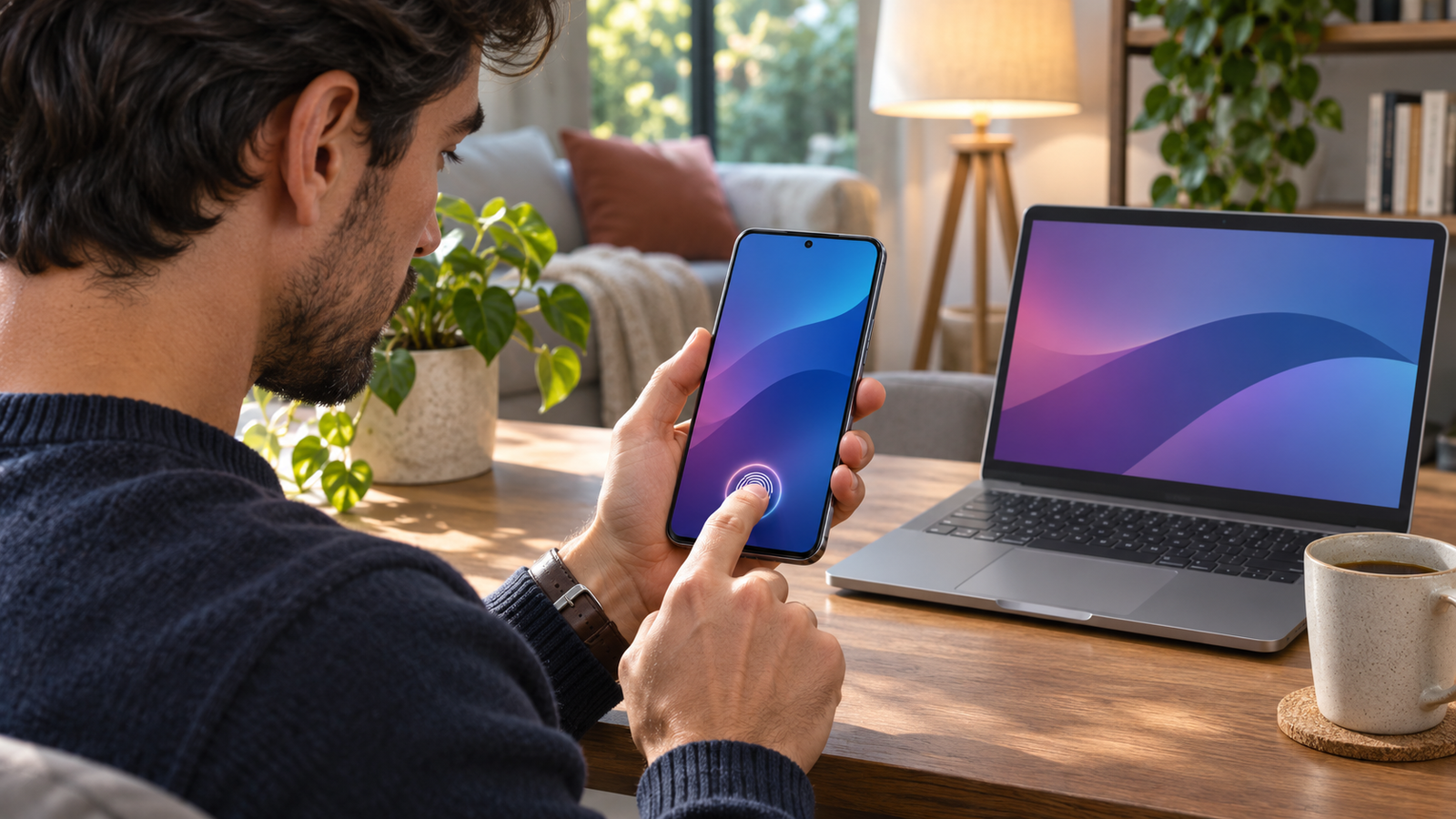
Images: AI-generated conceptual illustrations for Mohawk Valley Voice, not documentary photographs.
A sign-in screen offers to create a passkey. You recognize the word password, but the new option leaves you with a practical question: What happens if the phone that lets you in is lost or replaced?
You do not have to switch every account at once. Choose one service you know well, use a device you control and make sure you understand the recovery options first. The goal is to make sign-in easier to use without making access depend on a plan you have never checked.
Understand what the prompt is asking you to do
A passkey is a sign-in credential that can take the place of typing a password on a supporting service. You usually approve sign-in by unlocking a device, for example with a PIN, face scan or fingerprint. The device unlock is not a new password you send to the website. Google’s passkey guide explains that the fingerprint or face data used to unlock your device stays on that device.
The Cybersecurity and Infrastructure Security Agency identifies FIDO and WebAuthn sign-in as resistant to phishing. The benefit is that the sign-in credential is tied to the service it is meant for. That does not make every message on your screen trustworthy. Someone can still ask you to send money or disclose information, even if they cannot collect a passkey the way they might collect a typed password.
Choose one account and one device you control
Open the real website or app the way you normally do and look for the passkey option in its account security settings. Do not start with an unexpected email or text telling you to change the way you sign in. If you cannot find the option, read the provider’s current instructions for your device and browser.
Use a personal device with a screen lock. Google warns against creating a passkey on a shared device, because access to the unlocked device can allow someone to sign in. That matters at a library workstation, a borrowed laptop or a tablet several people can unlock. A device can be inside your home and still be shared.
Pick a time when you do not urgently need the account. Trying a new sign-in method just before you must retrieve a boarding pass or submit a form leaves little room to sort out a question. Have the provider’s help page available before you start.
Check how you would recover access
Review the recovery options your provider lists. Can you still receive messages at the recovery email address? Is the trusted phone number current? If the service provides recovery codes, read its instructions for keeping them securely. Do not put actual codes, account passwords or the device PIN in a shared note.
Check where the passkey will be saved. Some passkeys can sync through a password manager. Others may remain on a specific device or security key. Apple’s guide to passkey security explains how iCloud Keychain sync and recovery work for its system. That process is not a promise that every credential saved in a different system will appear on a new phone.
Write a short, private note naming the service, the place where the passkey is stored and where to find the official recovery instructions. Leave out the secrets themselves. You want a map for recovery, not a piece of paper that gives someone else access.

Check what changes when you travel
For example, if you usually sign in with a passkey on your home laptop but will travel with only your phone, try the phone before leaving. Test the device and account you will actually have with you. If a needed credential is available only at home, use the provider’s official options to make a plan before you go.
Create it, then check a real sign-in
Follow the provider’s instructions from the account settings and read the save prompt before approving it. Check the account name if you use several accounts on the same phone. A passkey saved for a work account is not automatically the credential for a personal account with a similar name.
Try a normal sign-in from a separate browser session while keeping an existing session open. Note which device or password manager supplies the passkey and whether you can complete the unlock. If the service still asks for a password, check its instructions before creating a second credential. The device, browser or account settings may affect which option you see.
Do not remove the old recovery methods just because the test worked. Google says adding a passkey does not remove the existing authentication or recovery factors on a Google Account. Other services may work differently. Review the actual settings instead of assuming the change was the same everywhere.
Make the phone replacement a separate task
Before trading in or resetting a phone, use the new device to check the accounts you will need first. Start with the email account that receives recovery messages. Check that you can access the relevant password manager and complete sign-in. A transferred app icon is not proof that its account is ready.
If the old device is already missing, go directly to the provider’s official lost-device and account-security instructions. Google’s guide distinguishes between manually created passkeys and credentials registered automatically on Android devices. Use the steps that match what you see in the account. Do not assume removing something from a password manager also removes it from the website’s account settings.
If a relative is helping, ask them to read the instructions or help identify the right screen while you keep control of the unlock and approval steps. They do not need a copy of your recovery codes to help you understand a menu.
Decide whether to add another account
After a few ordinary sign-ins, ask whether the new process is easier for you and whether you can explain the recovery plan. If so, repeat the same check for another service. If not, resolve the first question before adding more accounts. Where a service does not support passkeys, continue using the protections it offers.
Keep the first experiment small: one account, one personal device, a successful test and a written record of where to find recovery help. That is more useful than enabling a new feature everywhere and learning how it works only when a device is gone.
Official product instructions checked November 11, 2026. Available sign-in and recovery options can differ by service and device.
For a broader household checklist, see our guide to securing accounts, photos and files.