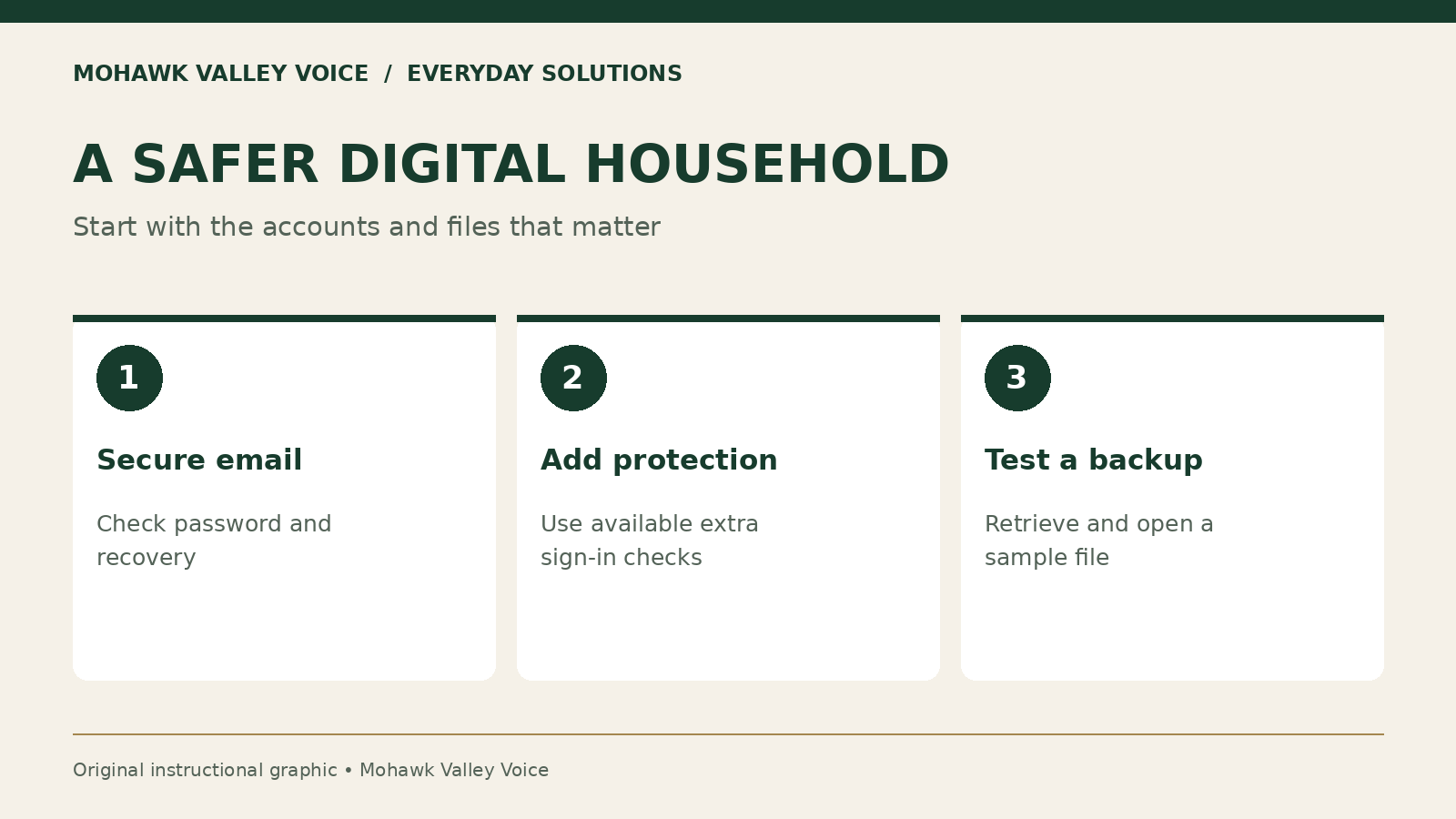
Protect the accounts and files your household relies on with a manageable digital tune-up, from securing email to testing a backup before something goes wrong.
By David LaGuerre
Digital safety does not have to mean changing every device setting in one sitting. A useful household tune-up starts with a few priorities: your main email account, the accounts that matter most, the files you cannot replace and a clear way to recover access.
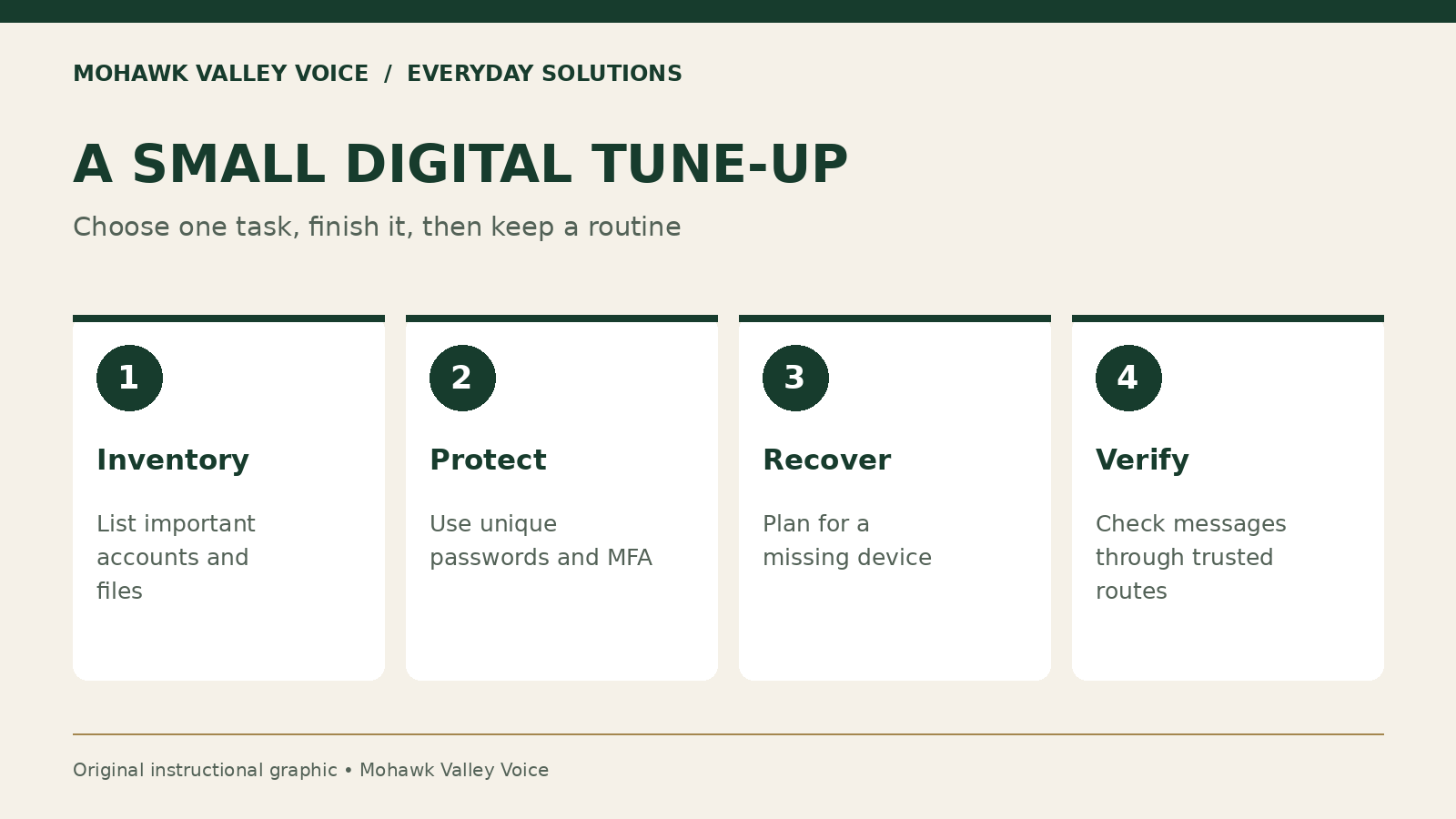
A phone can be replaced. Family photographs, a folder of schoolwork or the only copy of a household document may be harder to recreate. This guide offers a practical order for making improvements. Work in short sessions and record what you complete. You are building a routine you can maintain, not trying to become a computer specialist overnight.
List what matters before changing anything
Start with a private inventory of your main email, banking, benefits, health portal and other important accounts. Include accounts used for household bills or a small home business. Note the service name and whether you can currently sign in. Do not write passwords into an ordinary shared spreadsheet.
Make a separate list of important files. Consider photographs, tax records, creative work and documents that exist only on a particular device. Circle anything that has no known backup. These lists give you an order of work. You can secure a critical account first instead of spending the afternoon deleting old shopping messages while more important gaps remain.
Give your email account the first turn
The Federal Trade Commission explains that email often receives password-reset links for other accounts. That makes it an important starting point. Open the email provider’s official website or app directly, then look for account security and recovery settings.
Check that the recovery phone number and email belong to you and remain accessible. Review signed-in devices if the provider offers that option. If something looks unfamiliar, follow the provider’s help instructions rather than guessing. Keep a brief record of the date you checked and any action still needed. Do not store secret recovery codes in the same ordinary note as your account inventory.
Use a different strong password for each account
CISA’s Secure Our World guidance recommends strong passwords as one of its basic protective actions. Reusing one password makes several accounts depend on the same secret. Begin by replacing reused passwords on your most important services.
A password manager can help create and store unique passwords. Choose an established service with instructions you understand, learn how to unlock it and set up its recovery process before depending on it. If you use one, protect its main password carefully. Do not ask a friend to collect your passwords by email. A trusted helper can sit with you and explain the steps while you keep control of the private information.
Turn on an extra sign-in check
Multifactor authentication adds a check beyond a password. Services may offer an authenticator app, a security key, a passkey or a code delivered through another channel. Available choices and setup steps differ by provider.
Open the security menu of the real service and follow its instructions. Read how recovery works before finishing. If backup codes are supplied, store them securely where you can retrieve them when your usual device is unavailable. Test a normal sign-in after setup. Never give a verification code to a caller who claims to be helping you; use the service’s own sign-in process. Do not approve an unexpected sign-in request just to make repeated notifications stop.
Make a backup, then prove you can use it
A backup is a separate copy you can recover, not simply a folder you hope will still be there. CISA’s device data protection resource links to backup and recovery guidance for common platforms. Use the instructions for your actual device, not a tutorial for a different system.
Start with a small group of irreplaceable files. Choose a backup destination and let the process finish. Then restore or retrieve one non-sensitive test file and open it. Record where the copy lives and when it was last checked. Do not delete the originals just because a progress bar reached the end. A backup you have tested gives you better information than an unverified assumption.
Understand the difference between syncing and backup
Some services keep folders synchronized across devices. Depending on their settings, a change or deletion may also move across those devices. Check whether the service offers version history, deleted-file recovery and a separate backup feature, and read the limits of each.
Our suggested household approach is to keep an additional protected copy of essential files outside the everyday working folder. An external drive or a suitable backup service may fit, depending on your needs. If you use a drive, follow safe removal instructions and store it securely when not in use. Check encryption and recovery instructions before placing sensitive records on it. Do not assume that an icon labeled cloud means every file is safely recoverable.
Choose a small backup routine you will remember
Set a routine around something you already do, such as a monthly household paperwork review. If you create valuable files more often, choose a more frequent backup schedule. The schedule should reflect how much new work you would be willing to lose.
Use a short log: date, device or folder, destination and result of a test. For example, record that family photos were copied to the designated drive and one sample picture opened successfully. Keep it simple enough that another household member can understand it. A clear routine is easier to continue than an elaborate setup whose purpose no one remembers.
Pause before responding to an urgent message
The FTC advises against clicking links in unexpected emails or texts. Instead, contact the company through a website or phone number you know is real. CISA also provides guidance on recognizing and reporting phishing.
Try a household rule: when a message demands money, a password or immediate action, stop and verify through a separate trusted route. Open your normal app to check an account notice. Use a number from an existing statement to ask about a bill. A familiar logo or display name is not enough evidence. If the message claims a relative needs money, contact that person through the number you already have.
Know where to start if an account is compromised
If you cannot access an account or see changes you did not make, use the provider’s official recovery instructions. The FTC’s recovery guide recommends securing the account afterward, checking recovery information and looking for unauthorized email-forwarding rules or messages.
Contact relevant institutions promptly if money or sensitive information may be involved. If someone is using your personal information, the FTC directs people to IdentityTheft.gov for a recovery plan. Keep a record of what happened and the actions you took. Do not pay an unsolicited person who promises guaranteed account recovery, and do not let a stranger take remote control of your device because of a pop-up warning.
Finish one task and leave a clear next step
Today, pick one concrete improvement: update email recovery details, replace a reused password or test a backup of one important folder. Note the next task and set aside time to complete it.
Include family members who rely on the accounts or devices, especially when a household shares responsibilities. Explain where help instructions can be found without exposing private passwords. Digital safety improves when the routine is understandable, the copies are tested and the recovery plan works when a device is missing.
Official guidance checked October 8, 2026. Menu names and available security features vary by service; follow the current instructions from your provider.