

By David LaGuerre
Mohawk Valley Voice
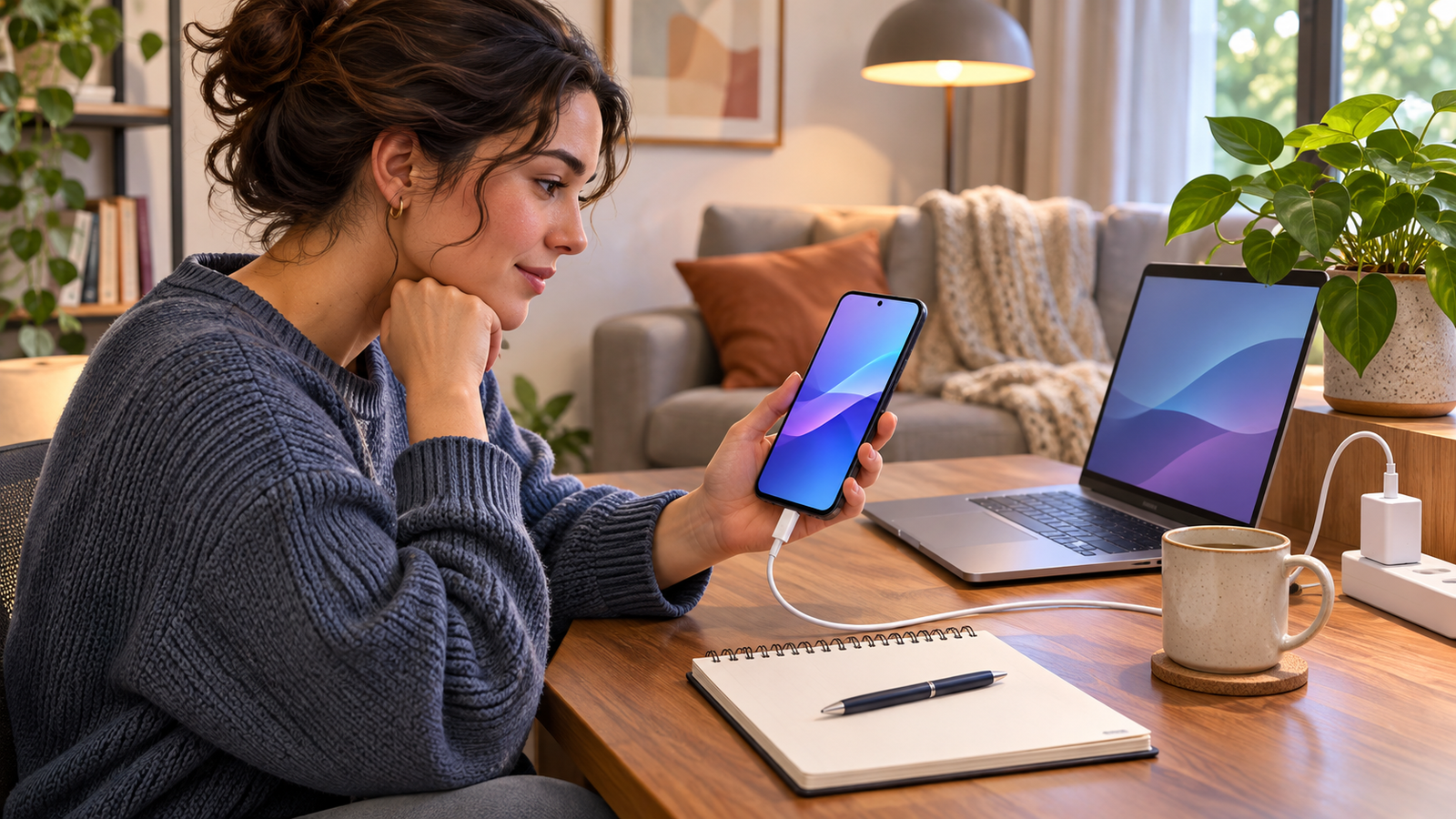
Featured image: AI-generated illustration: Prepare power and time before updating a phone. Screens are conceptual. Credit: Mohawk Valley Voice.
By David LaGuerre
A software update notice often appears when you are about to leave home, answer a call or use a ticket on your phone. It is easy to postpone it and then forget what was waiting.
A better approach is to give phone software updates a short, deliberate routine. Know which device you have, prepare it, follow its own instructions and check the result. You do not need to memorize the newest version number or change every setting at once.
Apple identifies keeping software current as an important part of maintaining device security. Updates also arrive differently across devices. This guide focuses on the phone’s system software, with separate starting points for iPhone and Android.
Identify the phone before following a tutorial
Start a small note with the phone’s brand, model and the date you checked. Add its installed software version when you find it in Settings. Leave passwords and passcodes out of the note.
This matters when helping someone else. A household might have an older iPhone, a Samsung phone and another Android model. One set of screenshots will not necessarily match all three. Use the instructions for the actual device rather than tapping similar-looking options and hoping they mean the same thing.
If the phone is managed by an employer or school, contact its technology support team about update instructions. Do not remove a management profile or change work settings to force a personal tutorial to fit.
Choose a time when the phone can be unavailable
Look at what you need the device for next. If you are about to collect a child, attend a remote appointment or use a mobile ticket, plan an update session when those tasks are finished and you have another way to handle an urgent call.
Think of the session as preparation time plus installation and a check afterward. Avoid promising someone that every update takes a fixed number of minutes. Apple notes that download time depends on the update size and connection speed; its update troubleshooting guide also explains that installation time varies.
For a Mohawk Valley household sharing one phone for transportation or appointment messages, write the planned time on the household calendar. A small amount of coordination is more useful than starting an installation just as everyone is heading out.
Review the backup without turning this into a storage project
Apple’s update instructions begin with making a backup through iCloud or a computer. Review your backup status and use Apple’s backup instructions if you need help. Do not assume a backup is complete simply because it was started.
On Android, use Google’s backup guidance and the instructions for your device. Google cautions that not every app can back up or restore all its settings and data. Check anything especially important through that app’s own guidance.
The goal here is to identify an unresolved backup problem before proceeding. Do not delete valued photos or documents just to get past a storage message. If the phone reports insufficient space, stop and use the manufacturer’s storage instructions to decide what can safely be removed.
Prepare the connection and power
Use a Wi-Fi connection you trust and read the preparation instructions for the device. Apple directs iPhone users to connect to power and Wi-Fi. Google’s Android update guide recommends Wi-Fi and charging to at least 75 percent before updating.
Put the phone somewhere stable where the charging cable will not be pulled loose. Keep it out of the way of cooking, spills and a rushed trip out the door. If you are helping a relative, ask them to keep control of the phone and enter their own passcode when needed.
Write down any preparation item still missing. A note that says backup needs attention or return when charging is complete is an action plan. It is easier to follow than dismissing the update notice without deciding what happens next.
Check an iPhone through Settings
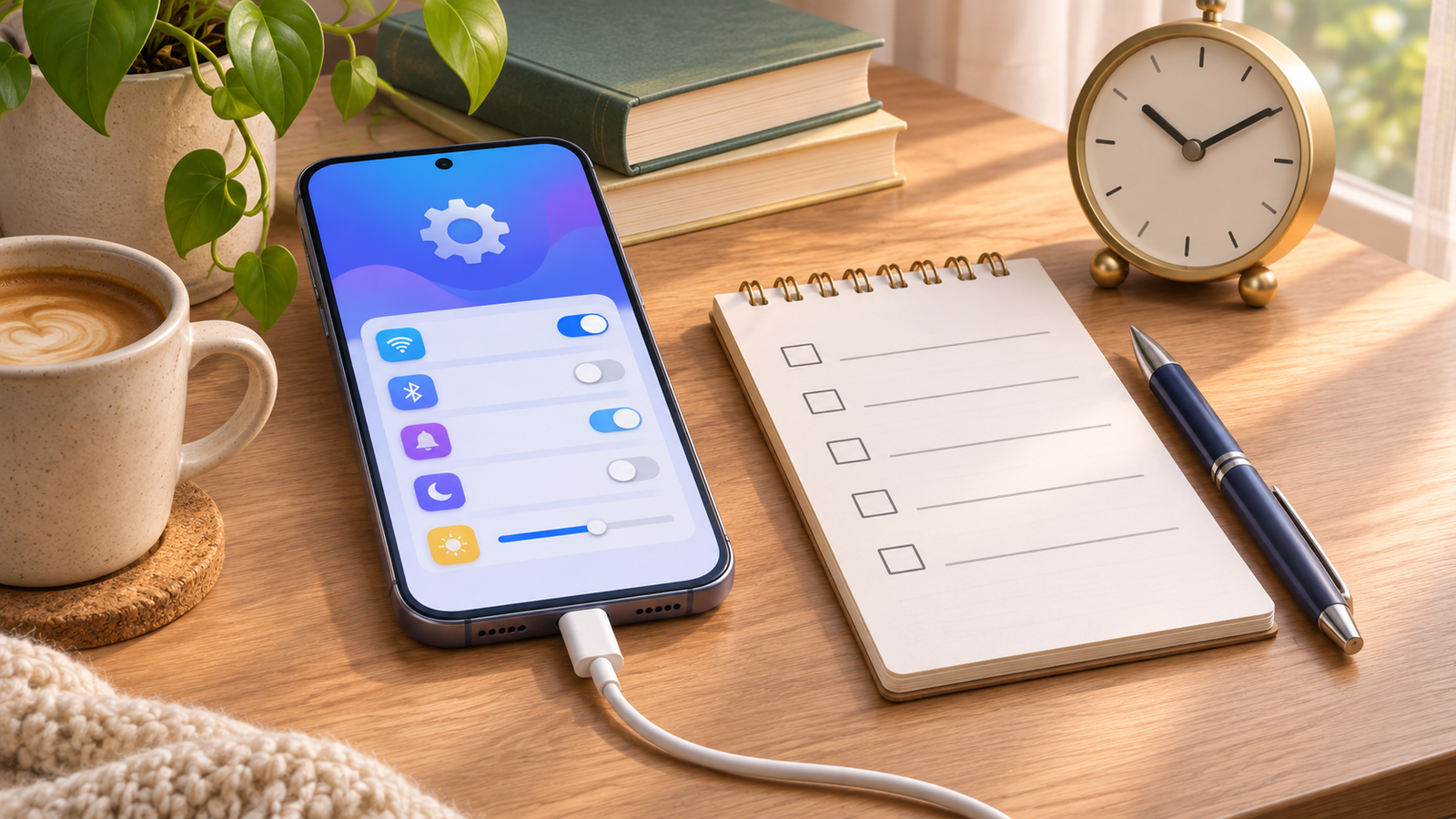
Apple’s wireless update instructions use this path:
- Open Settings.
- Choose General.
- Open Software Update.
- Review the installed version and any available update.
- If an update is offered, follow the download and installation instructions on the screen.
Read the choices before selecting one. Do not treat an unfamiliar button as a reason to keep tapping. If you need an explanation, use Apple’s current support page for the device or ask a trusted helper to read the options with you.
In the same Software Update area, Apple provides Automatic Updates settings. Review the available download and installation choices. Apple’s guidance says automatic overnight installation uses charging and Wi-Fi. Record what you selected rather than assuming the setting matches another person’s phone.
Check an Android phone through its update menu
Google directs users to Settings, System, Software updates, then the on-screen instructions. If that path does not match your phone, consult its manufacturer.
To review version information, Google lists Settings, About phone, Android version. Look for the Android version, security update and Google Play system update. Record their labels separately.
Schedules vary by device, manufacturer and carrier. Check with the manufacturer or carrier using the model you recorded. Keep the answer with your update notes so you can refer to it later.
Let the device finish, then verify
Follow the phone’s prompts during installation and any restart. Google explains that Pixel updates become active after restarting, while many other Android devices restart as part of installation. Do not count a completed download alone as proof that every required step is finished.
Once the phone returns to normal use, open the update screen again and read its status. Record the date, installed version and any remaining prompt. Avoid writing simply done if the screen still asks you to take another step.
Then try a few ordinary tasks you rely on, such as making a regular call, opening your calendar and using an important app. Do not make a test call to 911. Note a specific problem if one appears, including the app or function affected and the message shown.
Use the error message as your next clue
If something fails, copy the exact message or take a screenshot without exposing private information. Apple’s troubleshooting page lists several possible causes, including compatibility, storage, connection and installation problems. Use the section that matches what the device actually reports.
For Android, return to the manufacturer’s support instructions if Google’s general guide does not resolve the issue. Avoid trying unrelated fixes in a row. A useful support request includes the model, current version, attempted update and exact error.
Do not erase the phone or perform a factory reset as a casual first step. If official support recommends a process that removes data, understand the backup and recovery requirements before deciding how to proceed.
Check support status without guessing from age
An older phone may not be able to run the newest system version, as Apple and Google explain. That alone does not tell you the device’s full security support status. Check the manufacturer’s current policy for the specific model rather than assuming all phones receive updates for the same number of years.
Finish with a short record: checked on this date, installed version, update result and next action. Choose a recurring household time to review devices, while responding to official update instructions as they arrive. The useful habit is a completed check with a clear result, not a growing stack of dismissed notices.
Images are AI-generated editorial illustrations.
Official Apple and Google guidance checked November 3, 2026. Menus and available features vary by model and software. The scheduling, note-taking and follow-up examples are practical suggestions.