Call filters can reduce interruptions, but they can also catch wanted calls. Learn what each setting does and how to check the result.
By David LaGuerre
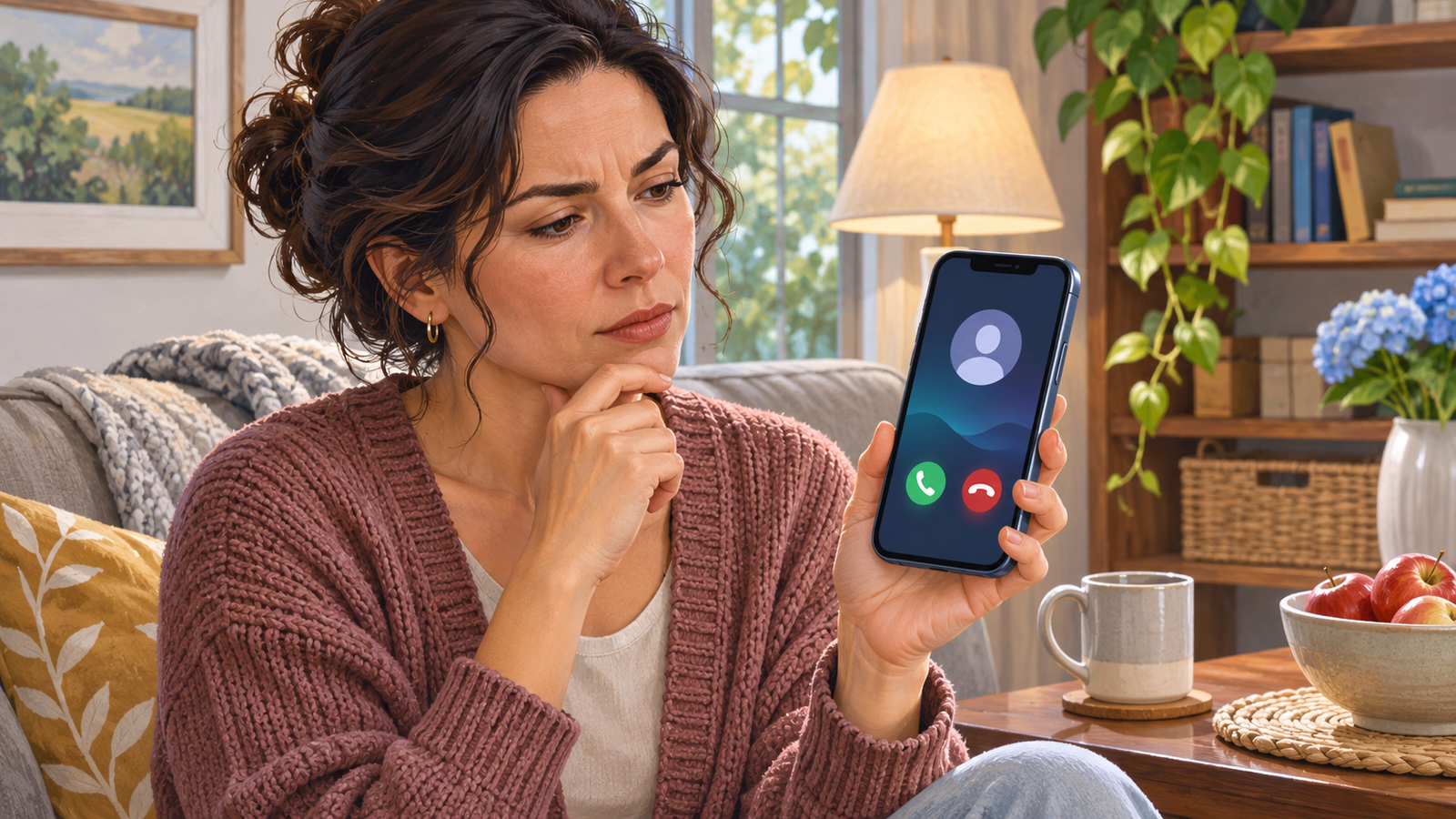
A phone that rings all afternoon can make it tempting to silence every unfamiliar number. That may reduce interruptions, but it also raises a practical question: how will you notice a wanted call from someone not yet in your contacts?
The Federal Trade Commission says call blocking and labeling can reduce unwanted calls but may catch wanted calls too. Choose a setup you can adjust.
Start with the phone and service you already use. Change one setting, learn where affected calls appear and review the result. You do not need to install several apps or make every device in the household behave the same way.
Identify the kind of phone service you have
Write down the phone model, the calling app and your service provider. For a home phone, ask the provider whether the service uses the internet or is a traditional landline. FTC guidance distinguishes these systems because their blocking options differ.
A smartphone tutorial may not apply to a cordless home handset. Two Android phones may also use different calling apps. If a menu does not match, use the manufacturer’s or provider’s instructions instead of guessing which nearby switch is equivalent.
Keep the information in a short household note without passwords or account numbers. This gives a trusted helper or customer service representative a useful starting point when you need help later.
Decide what you want the setting to do
Separate three goals: seeing a warning, preventing a ring and stopping calls from a specific number. These are different outcomes. A label may leave the call available for you to answer, while a stronger filter may handle it without an ordinary notification.
Think about the calls you currently need. A Mohawk Valley household waiting for a school callback, a repair appointment or a health office message may want a different arrangement from someone who expects calls only from a small group of saved contacts.
Write down the problem in one sentence. For example, you may want fewer interruptions while preserving a clear way to review calls you did not answer. That sentence can guide the choice more reliably than selecting every option labeled protection.
Review iPhone options in the Phone settings
Apple’s current unknown-caller instructions direct users to Settings, Apps, Phone. Under Screen Unknown Callers, available choices include allowing unsaved numbers to ring, asking the caller’s reason before the phone rings, or silencing the call and sending it to voicemail.
Apple also describes an Unknown Callers filter that moves relevant missed calls and voicemails into an Unknown Callers list. Its guidance explains where to find that list through the Phone app’s filter controls. Read the instructions for your software if the layout differs.
Add important numbers to Contacts, as Apple recommends. Then learn how to review calls outside that saved list. Do not treat unknown as a guarantee that a call is unwanted, or a saved contact name as independent proof of who is speaking.
Review options in Phone by Google
If your device uses Phone by Google, its caller ID and spam instructions start with the Phone app, More options, Settings, Caller ID and spam. Review the caller ID and spam controls there.
Google says the optional Filter spam calls setting suppresses missed-call and voicemail notifications for filtered calls, while leaving calls in the history and voicemail available to check. Some devices use automatic Call Screen options instead. Follow the instructions for the feature actually present.
Google also provides a way to mark a mistakenly flagged call as Not spam and unblock a number. Learn that process before depending on the filter. These instructions apply to Google’s calling app, not every Android phone app.

Ask the carrier what it already offers
Use the provider’s official website, account app or a customer service number from an existing bill. Ask what call-labeling or blocking services are available for your line, whether there is a charge and how wanted calls can be reviewed or restored.
The FTC notes that provider services may be free or may carry fees. Do not assume a promotional feature stays free or that a paid option is required. Read the terms before accepting an add-on.
Keep a record of the service name and any setting you changed. If an agent enables something, ask how you can manage it yourself afterward. A feature is easier to maintain when the household knows where its controls live.
Check privacy before adding another app
The FTC advises reviewing a blocking app’s privacy policy because some apps access contact lists. Google’s own guidance says caller ID and spam protection may send information about calls to Google. Read those explanations before choosing a service.
Ask what the app needs, what it costs and what problem remains after using built-in or carrier options. Avoid installing a second app simply because an advertisement promises to eliminate every unwanted call.
If you use a helper, decide together what will be installed and who controls the account. Do not hand over private sign-in information just to change a call setting. Keep the person who uses the phone involved in the decision.
Understand the Do Not Call Registry’s limits
The FTC’s National Do Not Call Registry FAQ explains that the registry tells legitimate telemarketers not to make unwanted sales calls. It does not block calls or stop scammers who ignore the law.
Use DoNotCall.gov for the official registration and reporting options. The registry does not prohibit every type of call; its FAQ identifies exceptions such as political and charitable calls. A continuing call is not, by itself, proof that registration failed.
Do not pay someone who says you need a special registration service. Go directly to the official site and read the instructions. Keep registration separate from whatever technical call filter you choose.
Report accurately and keep the record small
FTC guidance directs people who want to report an unwanted call without a monetary loss to DoNotCall.gov. If money was lost to a phone scam, or you have information about a scammer, use ReportFraud.ftc.gov.
Save the date, time, displayed number and any callback number given. Do not call back just to gather more information. A familiar local area code is not proof of a caller’s identity; the FTC warns that caller ID can be spoofed.
Do not post private account information or an unverified accusation against the owner of a displayed number. Record what you observed and use the official reporting process. Filtering and reporting do not replace independently checking a claim about an account you own.
Review the result before changing more settings
After making one change, locate the call history, voicemail and any filtered-call list. Arrange an ordinary test call with someone you trust if useful. Do not use an emergency number for testing.
Over the next several days, check whether wanted calls are reaching you and whether the interruptions have improved. If a problem appears, return to the setting you recorded and adjust it using the official instructions.
Finish with a simple note: feature selected, date changed, where to review calls and how to undo the change. A quieter phone is useful only if you still understand how people can reach you.
Official FTC, Apple and Google guidance checked November 5, 2026. Menus and features vary by device, software and provider. Household examples are practical suggestions. Images are AI-generated illustrations with conceptual screens.