By Dawn Michelle Laguerre
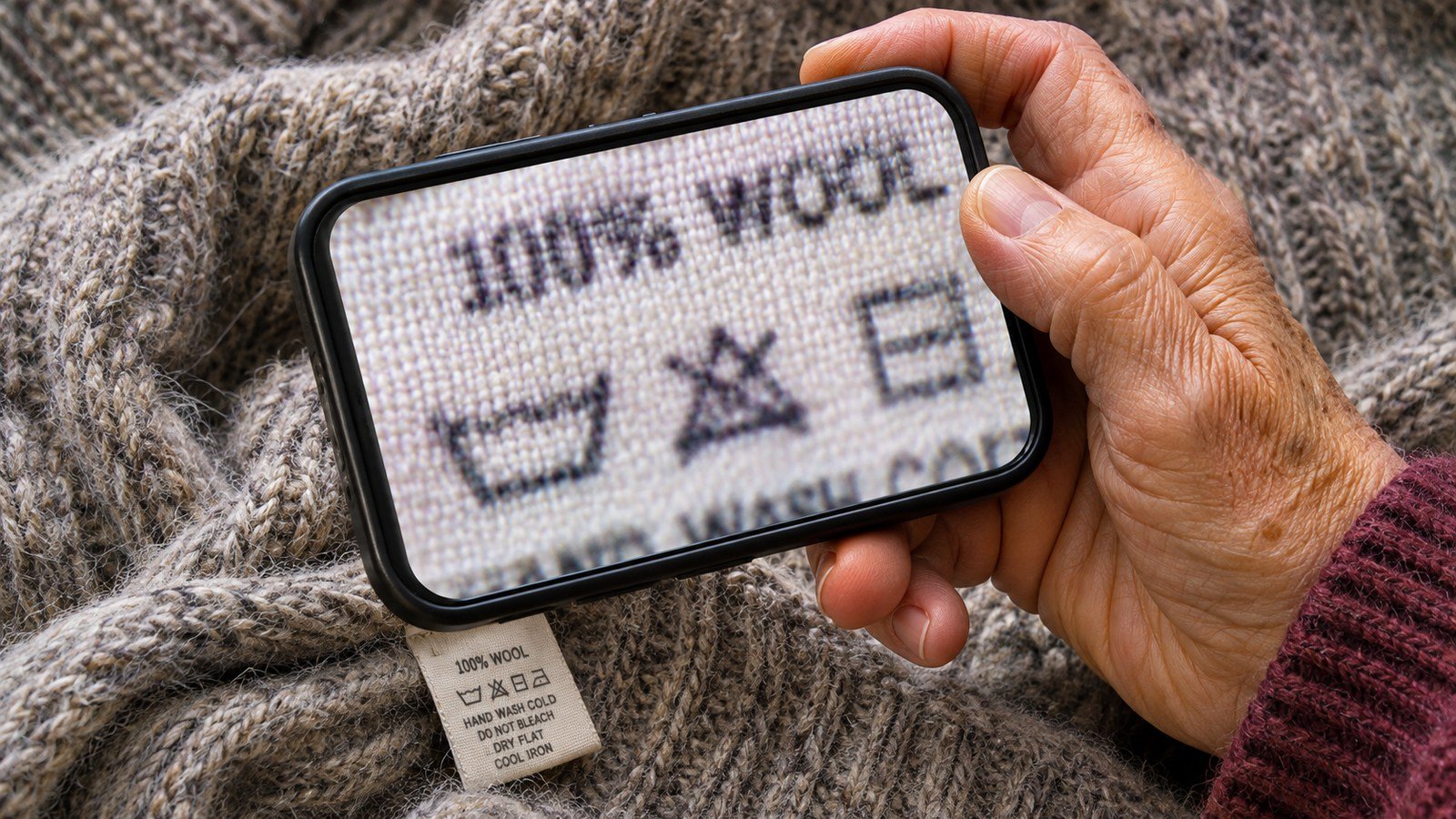
You can hold a sweater label closer, but sometimes the letters just turn into a blur. The camera on a phone may give you a clearer view, especially if you can brighten the image or freeze it without holding the phone still. Try this with a clothing label at home first. It’s an easy way to learn the controls before you need to read a model number or a line on a menu. A phone magnifier for small print can also help with small texts. Using a phone magnifier for small print is a simple and effective solution.
Start on the device you have
On an iPhone, look for the Magnifier app. Apple’s guide to Magnifier shows how to zoom in on objects or text and temporarily freeze what you see. Open it, point the rear camera toward the label and increase the zoom a little at a time. Keep enough of the line in view that you can tell where it starts and ends.
On a supported Pixel, look for Google’s Magnifier app in the Play Store if you don’t already have it. Google’s Pixel support guide lists Pixel 5 and later phones and excludes the Pixel Tablet. Google describes zoom buttons, a capture control for freezing the image and options for light and contrast. If you use another Android phone, check its manufacturer’s support page. Search for camera magnifier rather than just magnification: a setting that makes the contents of the screen larger may not use the camera to show what’s in front of you.
If all you have is your ordinary camera, point it at the label and see if the preview helps. A photo can also let you zoom after putting the phone down, but consider whether you want it saved. A model number on a lamp is one thing. A benefits letter or document with personal information may be better viewed live rather than photographed or synced.
Solve blur and glare before adding more zoom
Lay the item flat or hold it steady against a surface. Move the phone back slightly if the camera cannot focus close up. Try moving the light instead of chasing the label with the phone. A glossy label next to a lamp may be much easier to read when you turn the item a little so the glare moves off the print.
On supported devices, adjusting brightness or contrast can help the letters stand out. The flashlight can help in a dim spot, but a glossy surface might reflect that light back into the lens. Try side lighting first if the center of the image turns white. Pick one control to change at a time so you can see whether it makes a difference.
Freeze what you see, then move the phone
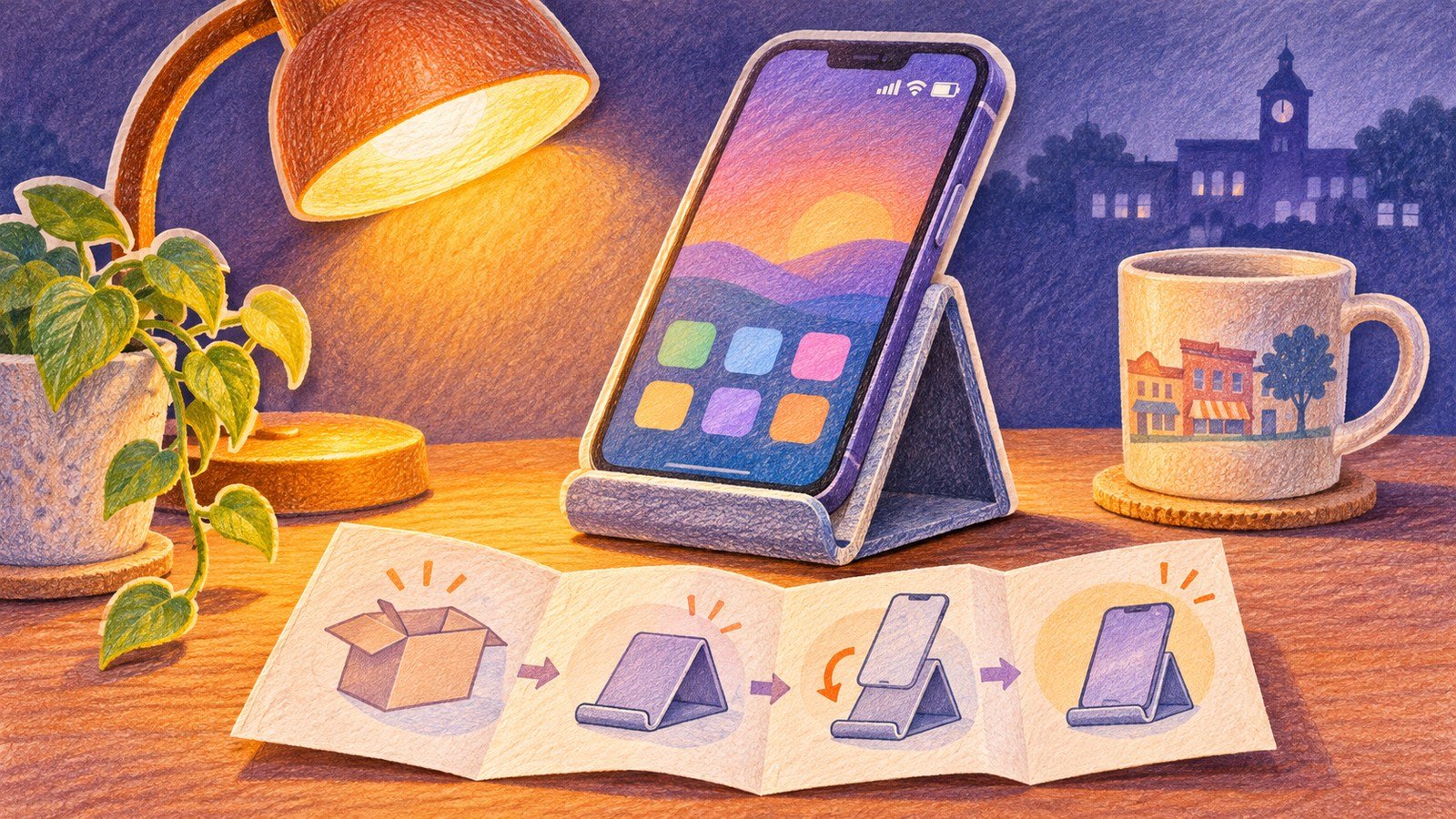
Apple’s freeze control and Google’s capture control can hold the frame in place while you inspect it. Once the image is sharp, freeze it and bring the phone to a more comfortable position. For example, hold it above a paper instruction sheet, capture the line you need, then sit at the table to read it. You can also prop your forearms against the table edge so you don’t have to hold the phone at arm’s length.
Do one practice round using an unimportant label. Find a line, freeze it, and then return to the live camera. Check the difference between freezing a view and saving an image. Google says the Pixel Magnifier capture is discarded when the app closes unless you save it. If you use another app or phone, check how it handles images before you use it on private paperwork.
Keep the entire context in view when letters or numbers matter. Read the heading as well as the line below it. If a number looks like either a six or an eight, change the angle and check it against the original or an official copy. For consequential print, such as medication instructions, ask the pharmacist to confirm anything you can’t read clearly. Zoom can make an unclear number larger without making it correct.
Use what works and keep an alternative
Try the feature again on something that normally takes you a minute, such as a care symbol, an appliance’s model label or the fine print on a paper form. Decide whether you prefer more light, more contrast or less zoom. Put the app somewhere you can easily find it again. If you’re helping someone else, let them choose the settings that fit; a view that looks sharp to you may feel glaring to them.
A phone is one tool. A lamp, large-print instructions or a stand magnifier may work better when you need both hands free or have several pages to read. Start today with a label you recognize. If you can freeze it, set the phone down and still read it comfortably, you’ve already learned the part most likely to help next time.